
Brick Books → Guides → Recording Money in and Out
Adding an entry by hand, attaching a receipt, and understanding how categories affect your profit.
Marketplace orders arrive on their own. Everything else you record yourself: a bulk buy from a garage sale, packaging, postage you paid, or any other money moving in or out of the business.
It only takes a few seconds.
Press + Record Something in the top-right corner of any screen.
Write something you will still understand in two years.
Bulk minifig lot, Facebook is much more useful than stock.
Type the shop or person, such as Australia Post. Spending with the same name adds up on the Dashboard under Who You Spend With Most, even if the descriptions are different.
Enter the amount as a positive number.
Whether it counts as money in or money out is decided by the category you choose, not by adding a minus sign. If you type a minus sign on spending anyway, Brick Books stops and asks, because money coming back from a supplier is not spending. For a refund you gave a customer, use the Refunds to Customers category instead. A minus sign on money coming in gets a similar question, Was this an expense?
If your business is registered for sales tax (GST, VAT or similar), Brick Books asks whether the amount you typed already includes it. Choose Yes and the tax included is worked out from the rate you set up and shown in a box you can change. Choose No and no tax is recorded. The amount you type is always the total paid, and your profit figures use what is left after the tax comes off. If your business is not registered, this question does not appear.
The shortcut buttons cover most everyday entries. If you know a category's code, such as INC-SHIP, type it (or part of its name) into the box beside the list and press Enter.
This is the important part, because the category tells Brick Books what the transaction actually is and how it should affect your books.
Press Choose a file and select the receipt or document.
When you save the entry, Brick Books renames the file, files it in the right place, and links it back to the entry.
Use Save & add another when you have a pile to get through.
The entry is saved, the form stays open, and the date remains filled in so you can move straight to the next one.
A category tells Brick Books what an entry represents, whether it affects your profit, and where it belongs on the reports your accountant sees.
Three kinds are especially important:
Some costs are shared between the business and your personal life.
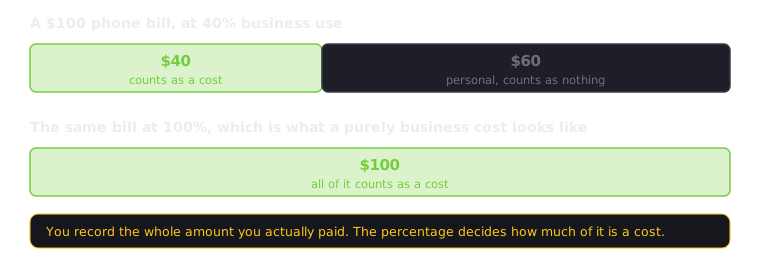
For something like an internet or phone bill, set the business use %.
If a $100 bill is 40% business use, Brick Books counts $40 as the business portion and keeps the remaining $60 out of your business costs.
Open Money In & Out to see every entry.
Click any column heading to sort by it, and click again to reverse the order. The search box looks through descriptions, references and notes.
A paperclip beside an entry means a document is attached.
Click the paperclip to open the document, or click anywhere else on the row to edit the entry.
Click the entry, make the change, and save it.
Every change is recorded in the audit log, so an existing entry is never quietly rewritten without a record of what changed.
Entries marked CHECK ME came from an import or sync and need your attention before you rely on them. Usually it is something simple, such as a missing category or a detail worth checking.
Open Tools and select a category to rename it, change its colour, or remove it.
Some system categories are protected because Brick Books needs to know which category serves a particular purpose, such as where marketplace income belongs. You can still change the name you see.
If you delete a category that already contains entries, Brick Books first asks where those entries should be moved. Nothing is simply deleted or left behind.