
Brick Books → Guides → Connecting BrickLink and Brick Owl
Getting your API keys, dealing with the BrickLink whitelist step that catches almost everyone out, and bringing in your order history.
Once connected, Brick Books brings your orders in automatically and separates the goods, postage paid by the buyer and marketplace fees.
That separation matters. They are different things in your books, and treating the whole order total as one number is how a healthy turnover can turn into a meaningless profit figure.
Go to Data & Imports → API Keys.
Sign in to Brick Owl, open your account settings and find the API section. Copy your API key.
Paste the key into the Brick Owl box in Brick Books, press Save Keys, then Test.
If the test passes, you are done.
BrickLink gives you four separate values, and unfortunately they all look much the same.
Sign in to BrickLink and open its API page (bricklink.com/v3/api.page), then follow the link there to register as a consumer. BrickLink may first email you a confirmation code, which expires after ten minutes; type it in when asked. You will see your ConsumerKey and ConsumerSecret under User Information.
Further down, under Access Token, find Add Access Token. Type your internet address into IP Address. Leave IP Mask as 0.0.0.0, which is the value BrickLink starts with, then create the token. BrickLink issues one token for each address you register, and shows its TokenValue and TokenSecret.
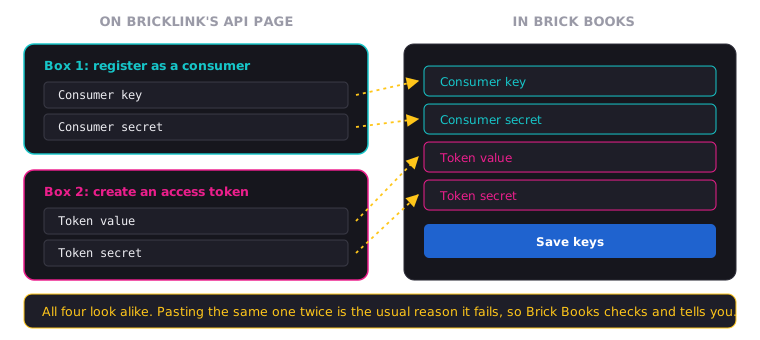
All four values look similar, but they come from two different parts of the BrickLink page and each belongs in a different box.
Accidentally pasting the same value into two fields is one of the most common reasons the connection fails. Brick Books checks for that and tells you if two of the values match.
BrickLink only accepts requests from the internet address you registered for the token, which is the address you typed in the previous step.
To find it, search what is my IP in your browser. If your address changes later, add a new access token for the new address.
Enter the consumer key, consumer secret, token value and token secret into their matching fields. Press Save Keys, then Test.
If something looks wrong, Brick Books tries to tell you what it found, such as a value with the wrong length or two fields containing the same value, instead of simply giving you a failed connection.
Check the whitelist first.
Many home internet connections use an IP address that can change, particularly after a modem or router reconnects. If yours changes, update the whitelisted address on BrickLink and try again.
Your Brick Books data has not broken, and you do not need new API keys.
Go to Data & Imports → Connectors → Sync Now.
The first sync can take longer because Brick Books is fetching your existing order history, including older orders that have already been filed or archived. After that, normal syncs only need to look for what is new.
An order may create several separate entries in your books, including:
That is intentional.
The goods and postage are income. The fees are costs. Keeping them separate is what lets Brick Books work out what the sale actually earned you.
Brick Books reads marketplace information. It does not write anything back.
It cannot change your inventory, alter a listing or price, cancel an order, mark something as shipped or move any money. It does not ask for permission to do those things.
Your API credentials are stored separately from the file containing your books.
When Brick Books creates a backup, it backs up your books, not your API keys. That means a Brick Books backup cannot accidentally become a copy of your marketplace credentials.
The trade-off is simple: if you restore your books onto another computer, you will need to enter your API keys again.