
Brick Books → Guides → Receipts and Old Receipts
Getting receipts into Brick Books, how they are filed, and how to bring in a pile of old ones.
A receipt you cannot find later is not much use. Brick Books renames each one consistently and files it by year and month, so it is still easy to find when you need it.
The tidiest option.
Attach the receipt while you record the transaction and Brick Books files it and links it permanently to that entry.
Drag files onto the upload box, or click to choose them.
Useful when you have a whole pile to work through.
Save or copy receipts into the Receipts Inbox folder, which is inside your receipts folder, then press Check Inbox.
If that folder is synchronised with your phone, you can photograph a receipt at the counter, save it there, and have it waiting in Brick Books when you get back to your computer.
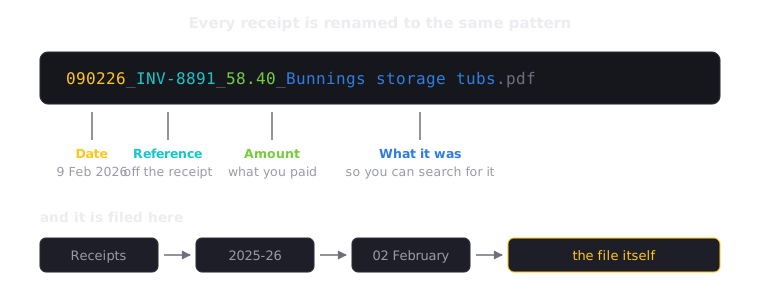
090226_INV-8891_58.40_Bunnings storage tubs.pdf
Date, reference, amount and description.
The filenames sort sensibly, are easy to search, and tell you what a document is without making you open it first.
Unlinking a receipt from an entry only removes the connection between the two. The filed copy of the receipt stays exactly where it is.
Already have a folder full of receipts from before you started using Brick Books? Drag all of them into the Receipts Inbox folder, which is inside your receipts folder. Drop the files themselves, not folders of files.
Posting a receipt always makes a new entry. If you have already recorded that expense, for example by importing your bank or PayPal, posting the receipt would count it twice. In that case, discard the receipt on the Receipts screen and attach it to the existing entry instead: open the entry in Money In & Out and add the document there.
A set-up tool under Tools that will let you choose a folder anywhere on your computer where you kept your receipts. Brick Books will bring them in and check them against your entries, so you can record anything you may have missed. It is not part of this version yet.