
Brick Books → Guides → Using It From Your Phone
Sending receipt photos into Brick Books, and deciding whether you want to open the program itself on your phone.
There are two different ways you can use your phone with Brick Books:
Sending receipts is the simpler option and does not give your phone access to your books.
Both are explained inside Brick Books under Licence & Help → Link Your Phone. This guide covers the same options.
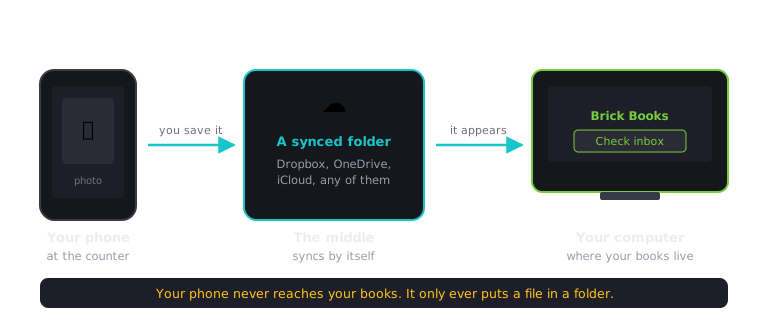
Your phone does not need to run Brick Books. It only needs a way to save files into your Receipts Inbox. The Receipts Inbox is a folder inside your receipts folder, and Link Your Phone inside Brick Books shows exactly where it is on your computer.
If you use a cloud storage service such as OneDrive, Dropbox, iCloud Drive, Google Drive, Proton Drive or Nextcloud, you can place your Brick Books documents folder inside one of its synced folders.
This means files saved to that folder from your phone will also appear on your computer. You can change your Brick Books documents folder under Data & Imports.
Then, on your phone:
For receipts received by email, save the attachment into the same folder.
Back at your computer, press Check Inbox in Brick Books. Anything waiting in the Receipts Inbox will be picked up and shown on the Receipts screen, ready for you to review and process.
Once you create the entry, Brick Books renames and files the receipt into the correct year and month folder.
That is fine too.
You can email receipt photos to yourself, transfer them another way, or save them on your computer later. Put them into the Receipts Inbox, then press Check Inbox.
Using the Receipts Inbox does not make your Brick Books database available online. Your phone is only sending or syncing receipt files into your documents folder.
Brick Books can also be opened in your phone’s web browser while Brick Books is running on your computer.
The screens are designed to work on smaller devices, but this requires allowing other devices on your network to connect to Brick Books.
When Brick Books is only available on your computer, access is protected by your computer itself. If you allow access from your local network, other devices on that network may also be able to reach Brick Books.
For that reason, only enable this on a private network you trust.
Press Windows + R, enter %APPDATA%\Brick Books and press
Enter. This opens the folder containing Brick Books’ settings.
Find the file named .env and open it with Notepad. If the file does not
exist, create a new file named .env. When saving from Notepad, choose
All Files as the file type so Windows does not save it as .env.txt.
Add this line: BBB_HOST=0.0.0.0
Leave any other settings already in the file unchanged. Close Brick Books completely, then open it again.
Open Command Prompt on your computer, type ipconfig and press Enter.
Look for IPv4 Address under the network connection you are using. It
will usually look something like 192.168.1.20.
Connect your phone to the same Wi-Fi network as your computer. Open a web browser on
your phone and enter http://YOUR-COMPUTER-ADDRESS:8420, for example
http://192.168.1.20:8420.
Windows may ask whether Brick Books can communicate over your network. Only allow access on networks you trust. If access is blocked, your phone will not be able to connect.
Most everyday tasks work well from a phone, including:
Some tasks work directly with files and folders on your computer and are better done there, including:
For those tasks, use Brick Books on the computer where your books are stored.