
Brick Books → Guides → Installing It
Downloading Brick Books, opening it for the first time, and understanding where your books actually live.
Brick Books runs on your own computer. It opens in your web browser and looks like a website, but the program itself is running locally. Your browser is simply the window you use to see it.
Your figures never leave your machine.
It does not need the internet to run, either. Entering things, reports, documents, backups and exports all work offline. A connection is only used for things like pulling in orders from the marketplaces and checking for a new version.
You will receive a download link by email straight after buying Brick Books.
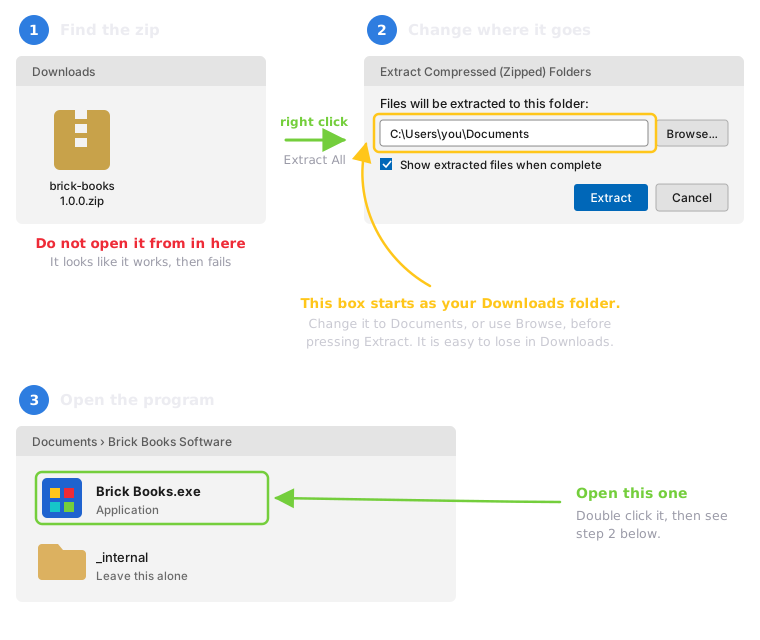
Save the downloaded zip file somewhere you will be able to find it again.
Do not run Brick Books from inside the zip file.
Right-click the downloaded file and choose Extract all. Windows will ask where you want to put the extracted folder. Choose somewhere sensible that you intend to keep it, rather than leaving it buried in Downloads.
Once extraction is finished, open the new Brick Books Software folder. Your receipts, backups and end of financial year packs are kept in a separate folder, Brick Books Documents, inside your Documents, so updating or removing the program never touches them.
Double-click Brick Books.exe.
Your browser will open automatically on the Brick Books dashboard, and Brick Books appears on your taskbar with the brick logo.
The small Brick Books window on your taskbar is Brick Books running. It starts minimised, so it stays out of the way while you work.
Closing the browser tab does not stop Brick Books. To stop it, click Brick Books on the taskbar and choose Quit Brick Books.
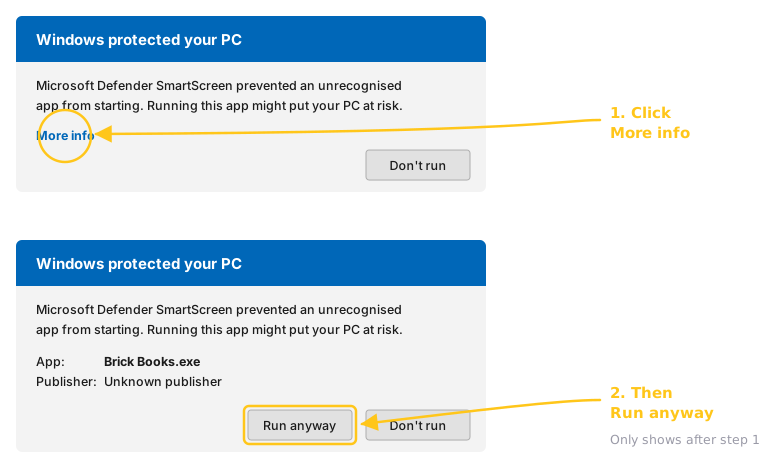
The first time you open Brick Books, Windows may show a blue Windows protected your PC message.
This can appear when Windows does not yet recognise a newly released program. Click More info, then Run anyway.
Brick Books opens at an address similar to http://127.0.0.1:8420. Bookmark it in your browser.
Next time you want to use Brick Books, start Brick Books.exe first, then open your bookmark. If you leave Brick Books running, you can use the bookmark whenever you like.
Everything in your books lives in a single data file on your computer.
That file is deliberately kept separately from the Brick Books program folder. Windows often puts restrictions around program files, so Brick Books stores your data safely inside your own Windows account instead.
You do not need to go looking for it. Open Data & Imports and you will see its full location under Where is everything else?
Because your books stay entirely on your computer, Brick Books does not keep a copy of them on my server. If the only copy of that file is lost, I cannot recover it for you, because I never had it in the first place.
Use Back up now instead.
Brick Books creates a proper snapshot of your books at a safe point. Manually copying the data file while Brick Books is in the middle of writing to it can produce an incomplete backup, and you may not discover that until you actually need to restore it.
Press Back up now under Data & Imports → Files & Backups regularly. Brick Books never backs up on its own. To get a second copy off your computer, point your documents folder at a folder that your cloud storage already syncs, and the backups are saved there too.
There is no need to wait until you have months of bookkeeping in it. Once your real books are in Brick Books, it is worth having a backup routine.
There are two different ways your phone can be involved.
Sending receipts from your phone is straightforward, because your phone only needs access to the folder you use for incoming documents. It does not need direct access to your books.
Opening Brick Books itself on your phone is different. Because Brick Books runs on your computer, your phone needs to be able to reach that computer over your local network.
Both options are explained in using it from your phone, and inside Brick Books under Licence & Help → Link Your Phone.
There is no Brick Books account to transfer, but copying the program folder by itself will not move your books. Your books are stored separately.
On the old computer, go to Data & Imports → Back up now. Keep the backup file somewhere you can access from the new computer.
Download or copy the Brick Books zip file to the new computer, extract it, and run Brick Books.exe once so it can create the folders it needs. Then add your licence key under Licence & Help.
Open Data & Imports and choose the option to restore a backup. If the backup file is on a USB stick or another drive, choose Use a backup file from somewhere else and pick it. Brick Books will show you what is inside the backup before making any changes. Once you confirm it, your books are restored onto the new computer.
Your marketplace and payment-provider API keys are deliberately not stored inside backups. Add those again under Data & Imports → API Keys.
One licence can be active on two computers, enough for your desk machine and a laptop.
If you are replacing one of them, email support@brickbooks.app and I will free the old activation so the replacement computer can take its place. There is no charge and no limit on how many times you can ask.
A replaced, lost or dead computer should never cost you access to software you already bought.