
Brick Books → Download
There is one download for everything: buying Brick Books, starting a free trial, or updating an existing copy.
Already bought Brick Books?
Download it below, then open Licence & Help and paste in the licence key from your purchase email to activate it.
Want to try it first?
The same download includes a free 14-day trial. No card and no account required.
Once the download finishes, the instructions below will take you from the ZIP file to a working copy of Brick Books.
Want a look before you install it? Try the demo, which is the full program running with a fictional seller's books, or browse the guides to see how everything works.
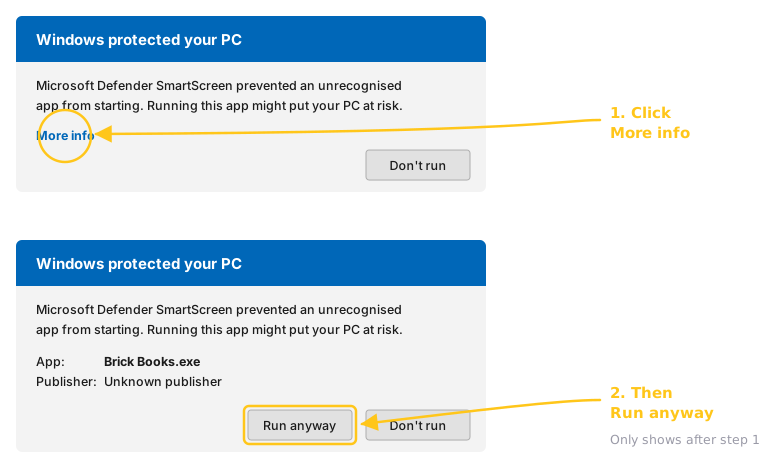
Brick Books is not currently signed with a code-signing certificate, so Windows SmartScreen may show a blue Windows protected your PC message the first time you open it.
Click More info, then Run anyway.
This warning does not automatically mean there is anything wrong with Brick Books. Windows commonly shows it for software that is unsigned or has not yet built up a reputation with SmartScreen.
Better to know about it here than meet it as a surprise.
Right-click the downloaded ZIP file and choose Extract All.
Windows will ask where you want to put the extracted folder. It may suggest your Downloads folder, but choose somewhere you intend to keep Brick Books, such as Documents, before pressing Extract.
Do not run Brick Books from inside the ZIP file.
Windows may let you open the ZIP and double-click the program from there, but that is not the same as properly extracting it first.
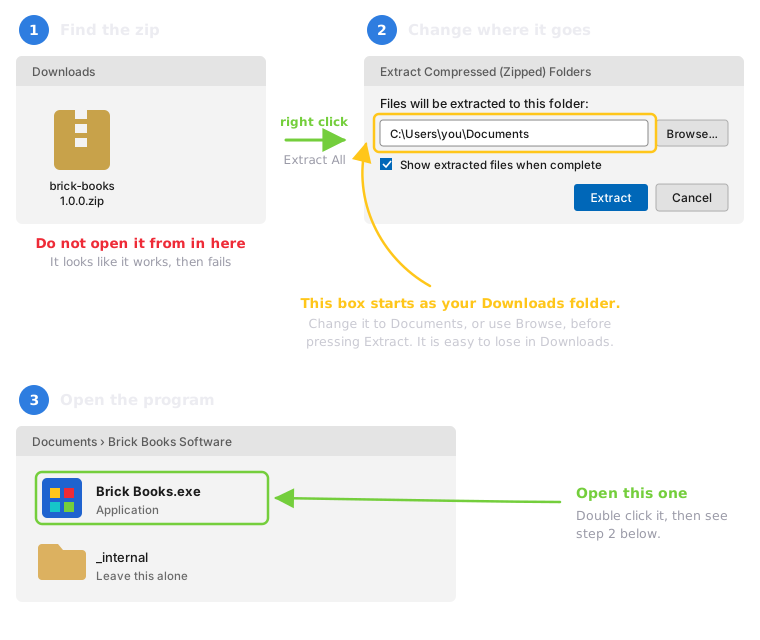
Double-click Brick Books.exe.
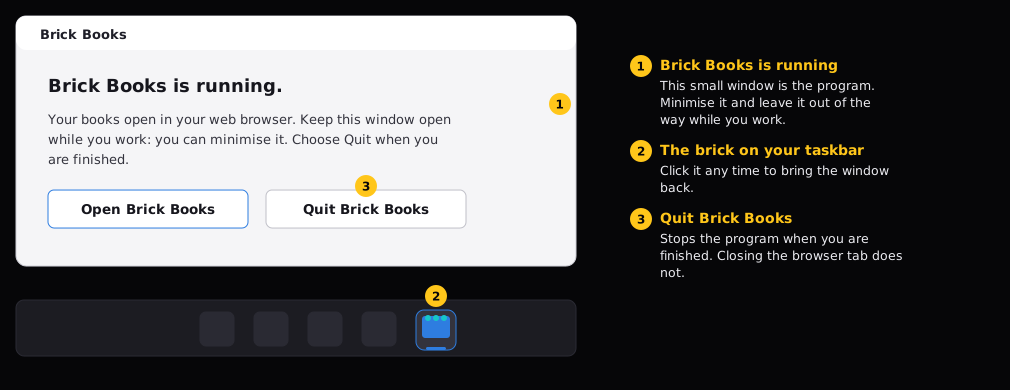
Brick Books opens in your web browser, and Brick Books appears on your taskbar with the brick logo.
That small Brick Books window is the program itself. Click it on the taskbar any time to open your books again, or choose Quit Brick Books when you are finished. Closing the browser tab does not stop it.
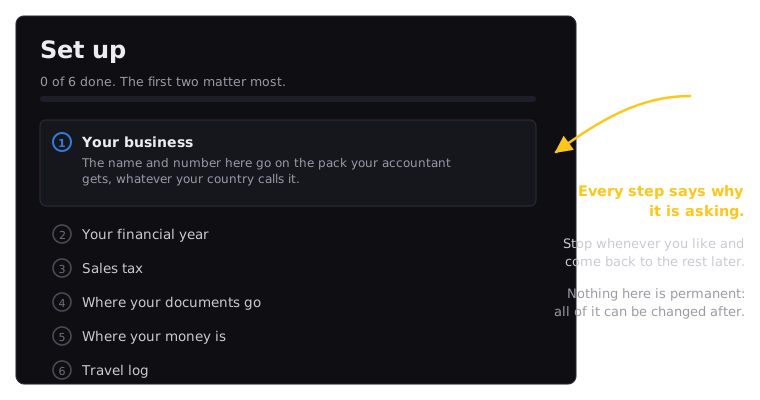
Brick Books will guide you through a handful of short setup steps and explain why each one matters.
If you have already bought Brick Books, add your licence key under Licence & Help in the menu.
Nothing is permanently locked in. You can stop partway through, come back later, and change your settings afterwards if you need to.
Once installed, Brick Books does not need an internet connection for normal bookkeeping. Your books, reports and locally stored documents remain available offline.
Some optional features, such as marketplace syncing, receipt reading, update checks and online distance lookups, do need an internet connection.
Updating uses the same download.
You do not need to set everything up again, and your books are stored separately from the Brick Books program folder.
If you want to be extra cautious, keep the old program folder until you are happy that the new version is working properly.
Close the browser tab if you like, then make sure the small black Brick Books window is closed.
Rename your current folder to something like:
Brick Books Software old
Nothing is deleted. If you need the old version again, it is still there.
Extract the new download into a fresh Brick Books Software folder, then open Brick Books.exe as usual.
Brick Books should find your existing books and settings automatically.
Keep it for a day, a week, or however long you like.
Once you are satisfied the new version is working properly, you can delete the old program folder.
There is no hurry.
Your books, settings, accounts, receipts and licence information are stored separately from the Brick Books program itself.
Replacing or deleting the Brick Books Software folder does not delete your books.
You should not need to set everything up again simply because you installed an update.
Most people will never need this.
A SHA-256 fingerprint lets you confirm that the ZIP file you downloaded is exactly the same file that was published on this website.
For version 1.3.0, the fingerprint is:
26d617cd22689031de6449fc6e4aa0114eb09737b73e261a1f08e49da260ea59
To check it, open PowerShell in the folder containing the downloaded ZIP and run:
Get-FileHash "brick-books-1.3.0-windows.zip" -Algorithm SHA256
If the result matches the fingerprint above, you have the expected file.
If it does not match, do not open the file. Let me know first.
Brick Books is currently Windows only, but a macOS version is being considered for the future.
A proper Mac release needs to be packaged, signed and notarised so it works reliably with current versions of macOS. I would rather release it properly than rush out something unreliable just to say a Mac version exists.
If you would use a Mac version, let me know.
I keep track of how many people ask for one, and that helps decide when it becomes worth building.